
Create a Video
Click to upload
What Is Kling 4.0?
Kling 4.0 is a multimodal AI video model for creating and editing scenes with visual references, timed images, camera direction, and generated sound.
A scene needs room for something to happen. This model combines longer single-generation clips with control over the people, objects, visual moments, and sounds that shape a story. A character can enter, react to an unexpected event, and leave with a changed expression; a product can move from its setting into a close-up. The purpose is to describe a connected piece of action, with the camera and sound contributing to what the viewer understands.
Two creation modes give that direction different forms. Omni Reference uses supplied material to guide the scene, while Keyframes establishes visual moments along its timeline. These are separate choices for a generation. Editing starts from existing footage and requests changes within it. The main model also supports output choices for different screens, so the way a scene is composed and delivered can be considered together.
Kling 4.0 Flash is a separate option with shorter, lower-resolution output and no first-and-last-frame or multiple-keyframe generation. The main model is the relevant choice when those controls matter to a scene. References and instructions guide the result; they do not make every movement, identity, or spoken syllable exact. Longer duration gives a story more room, but it still needs a clear sequence of events.
Kling 4.0 Features for Directing a Scene
Shape a scene's timing, composition, reference details, dialogue, and edits, then choose an output suited to where it will be shown.
30-Second Scenes with Camera Direction
Build a scene across 3–30 seconds, with time for an opening, a change, and a final reaction. Describe a camera move alongside the action: follow a runner through a doorway, then settle on what they discover. The main model's longer single-generation range gives these connected moments space within one clip.
4K Output for the Screen You Have in Mind
Choose 720p, 1080p, and 4K output according to the delivery you need. Compose for a wide film frame, a vertical post, or an ultrawide 21:9 scene instead of treating every destination as the same crop. In Keyframes mode, the first uploaded image sets the aspect ratio, making that opening composition an important part of the finished format.
Omni References for Characters, Objects, and Motion
Guide a scene with up to 15 reference assets: up to 10 images, up to 5 videos with 30 seconds total, and up to 7 elements including up to 3 video elements. These limits share the overall allowance and video quota. Give each reference a clear role, such as a character's appearance or a movement to follow, so supplied material contributes specific direction.
Up to 10 Keyframes to Shape the Story
Set up to 10 keyframes to establish how the scene should look at important moments. Opening, intermediate, and closing images can describe a reveal, a changing pose, or a shift in setting along the timeline. This separate creation mode is useful when the visual stages matter more than assembling a mixed collection of references.
Dialogue and Sound in Two-Channel Stereo
Bring speech, environmental sound, and action into the same scene with two-channel stereo. Support character dialogue with up to 3 voice profiles, assigning voices to the people who speak. Voice profiles guide voices rather than supplying background music or sound effects; the prompt can describe the room, street, or other soundscape around the conversation.
Directed Edits to Existing Video
Start with footage and request a change to its setting, action, expression, or style. Describe both the change and the details that should stay, such as a subject's clothing while the background changes. This gives an existing scene a specific editing goal instead of requiring every new version to begin as an unrelated text prompt.
How to Create a Video with Kling 4.0
Choose a starting point, describe the scene and its settings, then download the completed video. For input limits and worked prompts, read the guide.
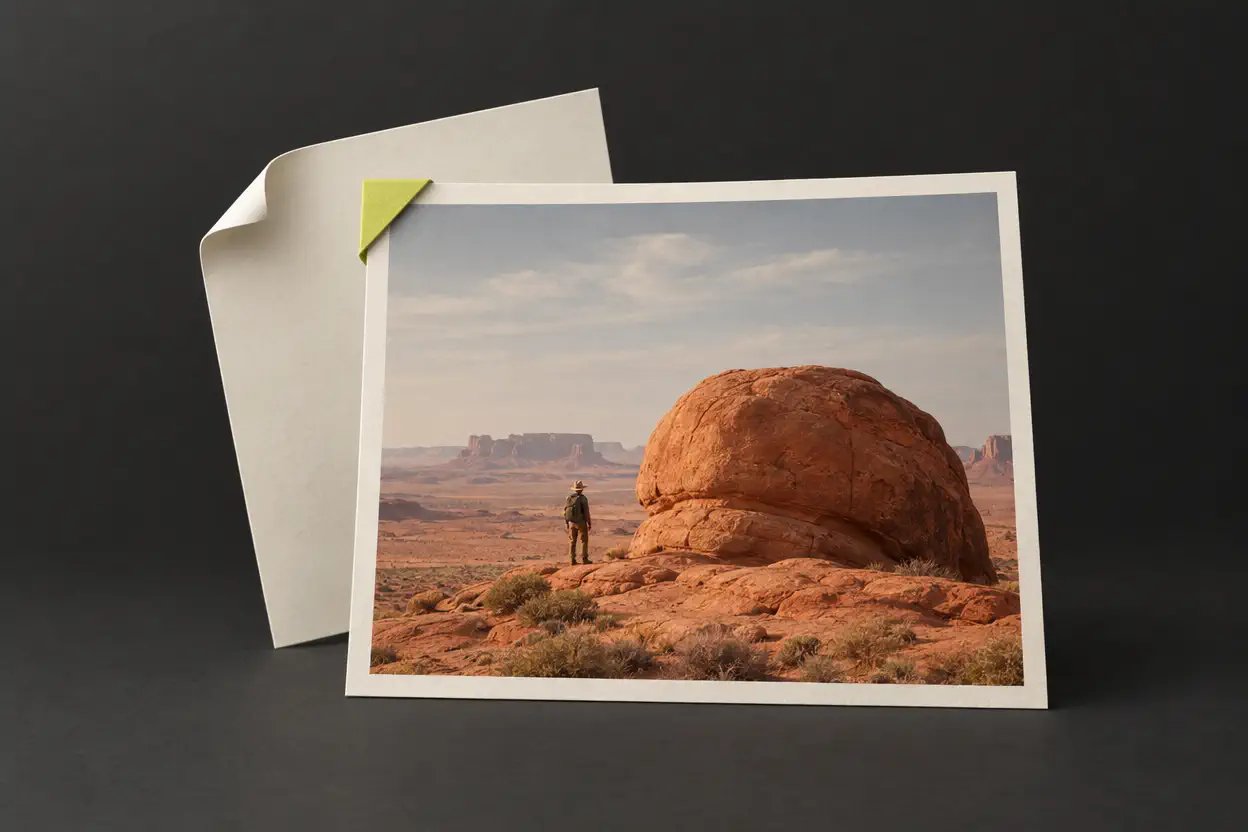
Step 1: Choose your starting point
Start with a written idea or an image. Use the material that best shows what your scene should contain.
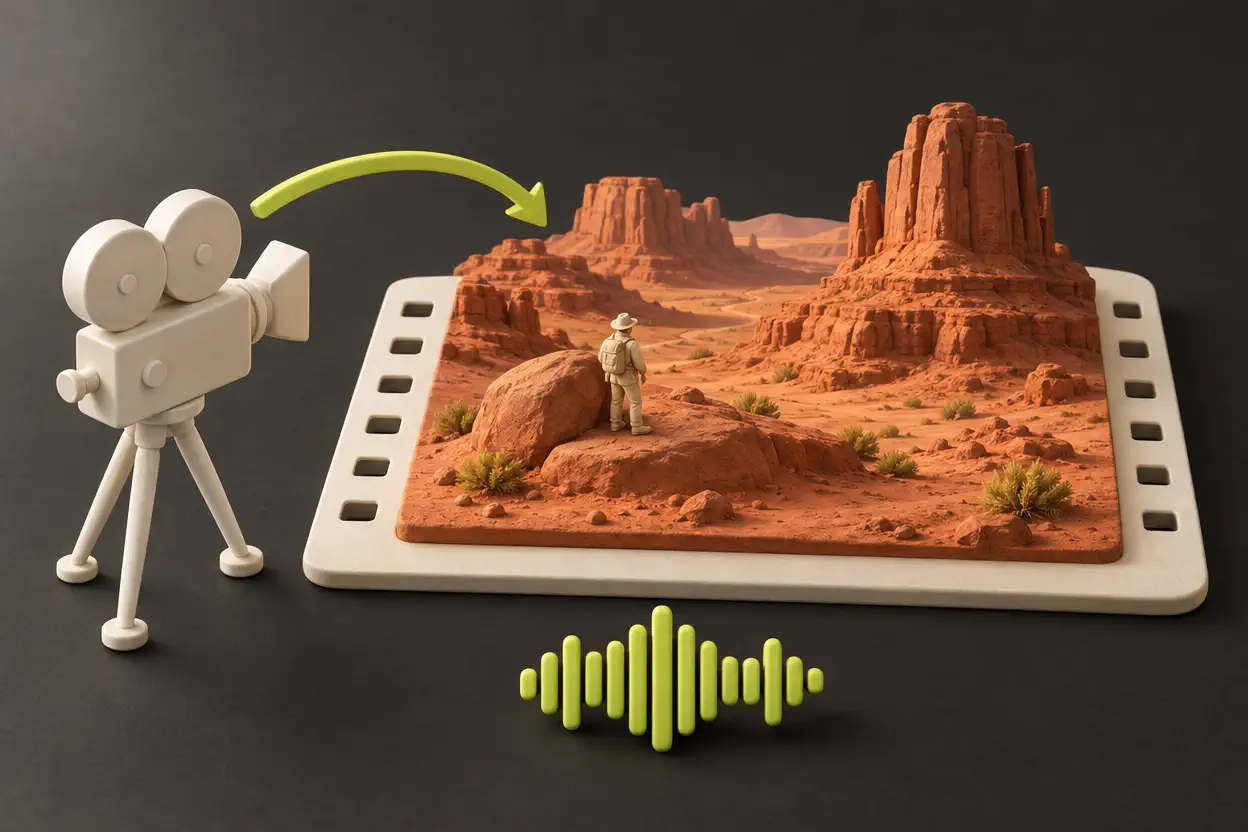
Step 2: Describe and generate
Describe the action, camera, and sound for your scene. Choose the available settings, then submit your video request.
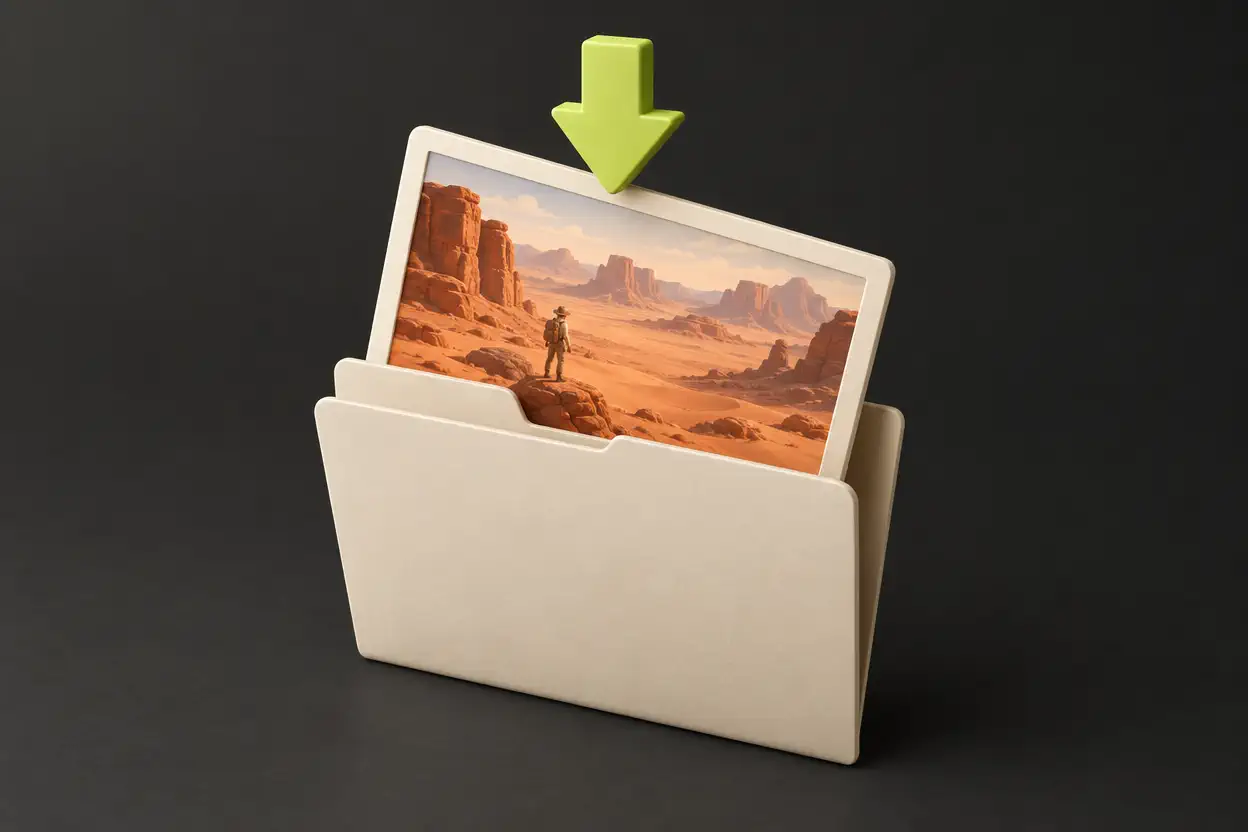
Step 3: Download and save
When generation finishes, open the completed video and download it. Save a local copy for your next edit or project.
What You Can Create with Kling 4.0
Explore six kinds of video projects, from product launches and social campaigns to short films, music visuals, travel stories, and animated explainers.

Product Launch Films
Present a product in a scene that shows its purpose. A compact power station beside a glowing tent turns an outdoor setting into a launch film for camping and portable energy brands.
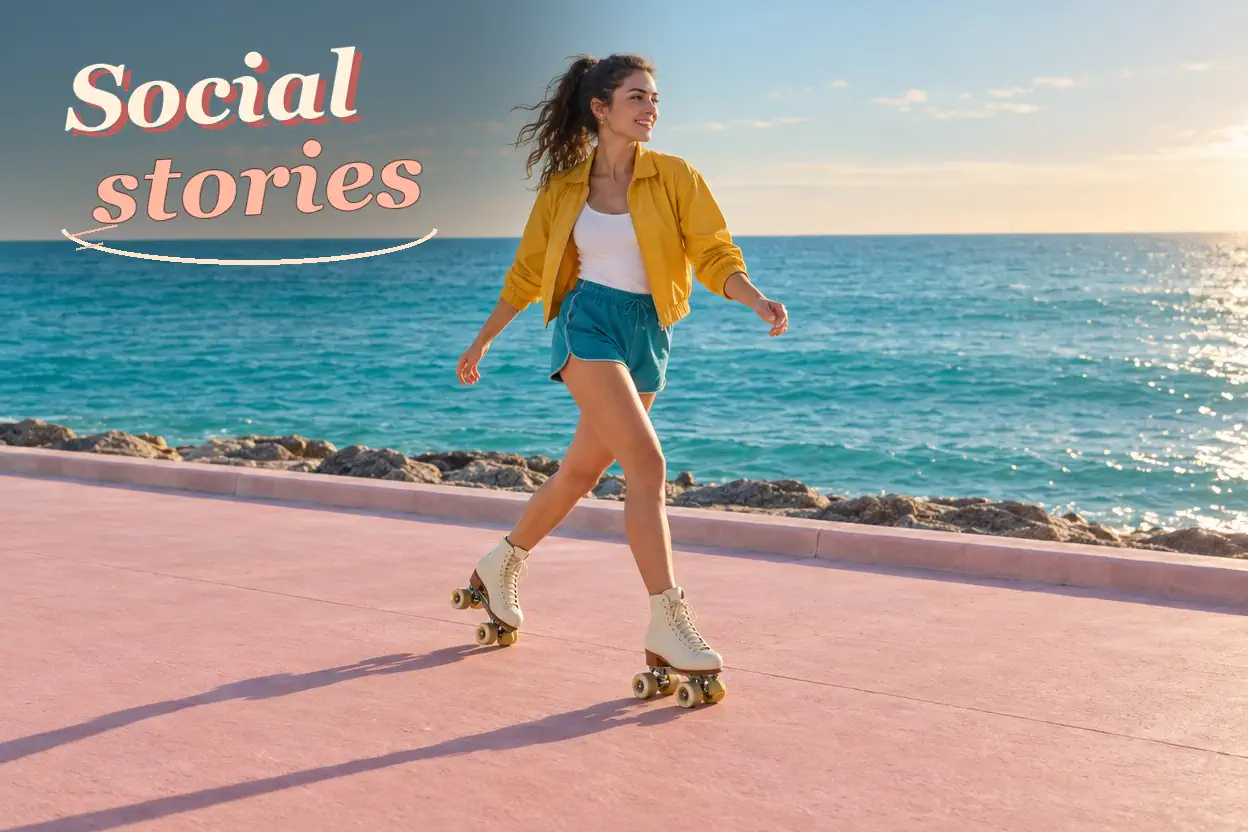
Social Campaign Clips
Build a social campaign around an instantly recognizable moment. A roller skater in a yellow jacket crossing a pastel seaside promenade gives a lifestyle brand an upbeat, character-led short clip.
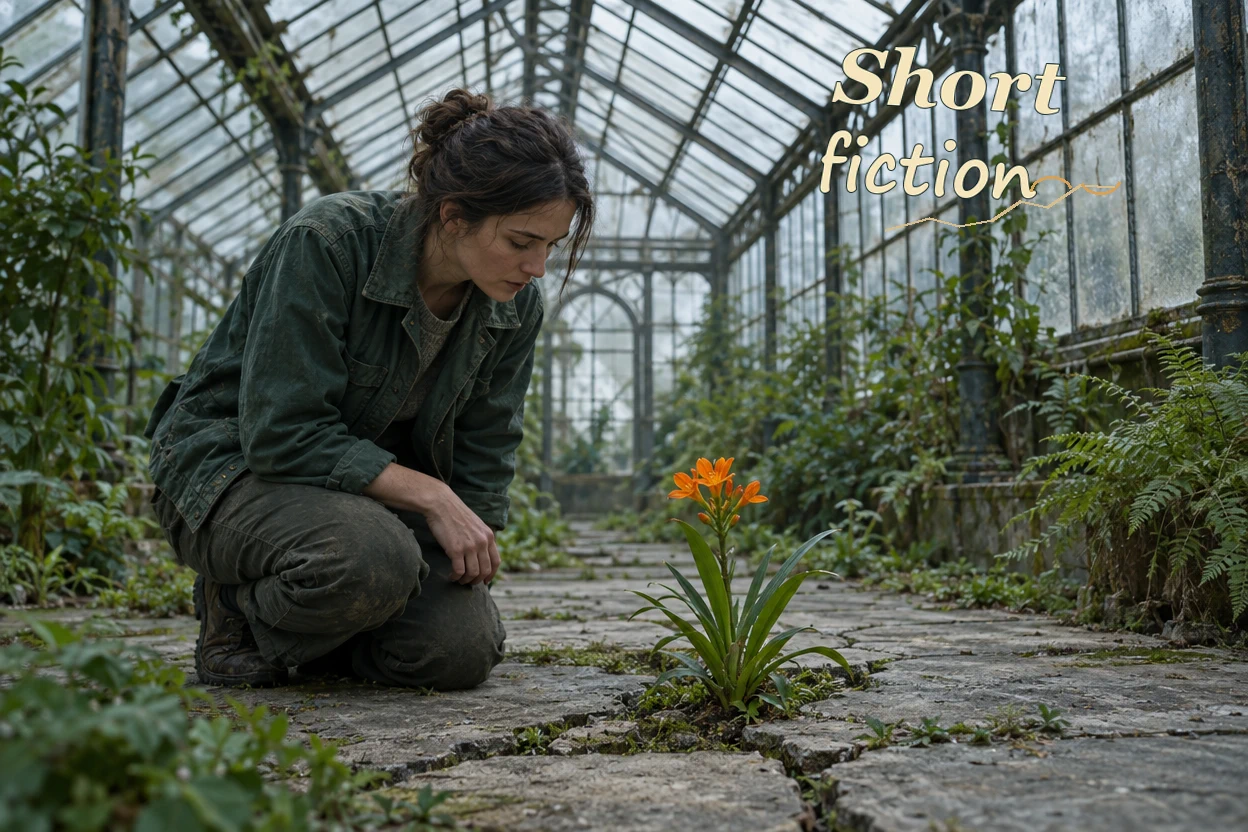
Short Narrative Films
Develop a short film around a discovery that changes the story. A lone botanist finding a flowering plant inside an abandoned glasshouse creates a clear opening for an environmental mystery.
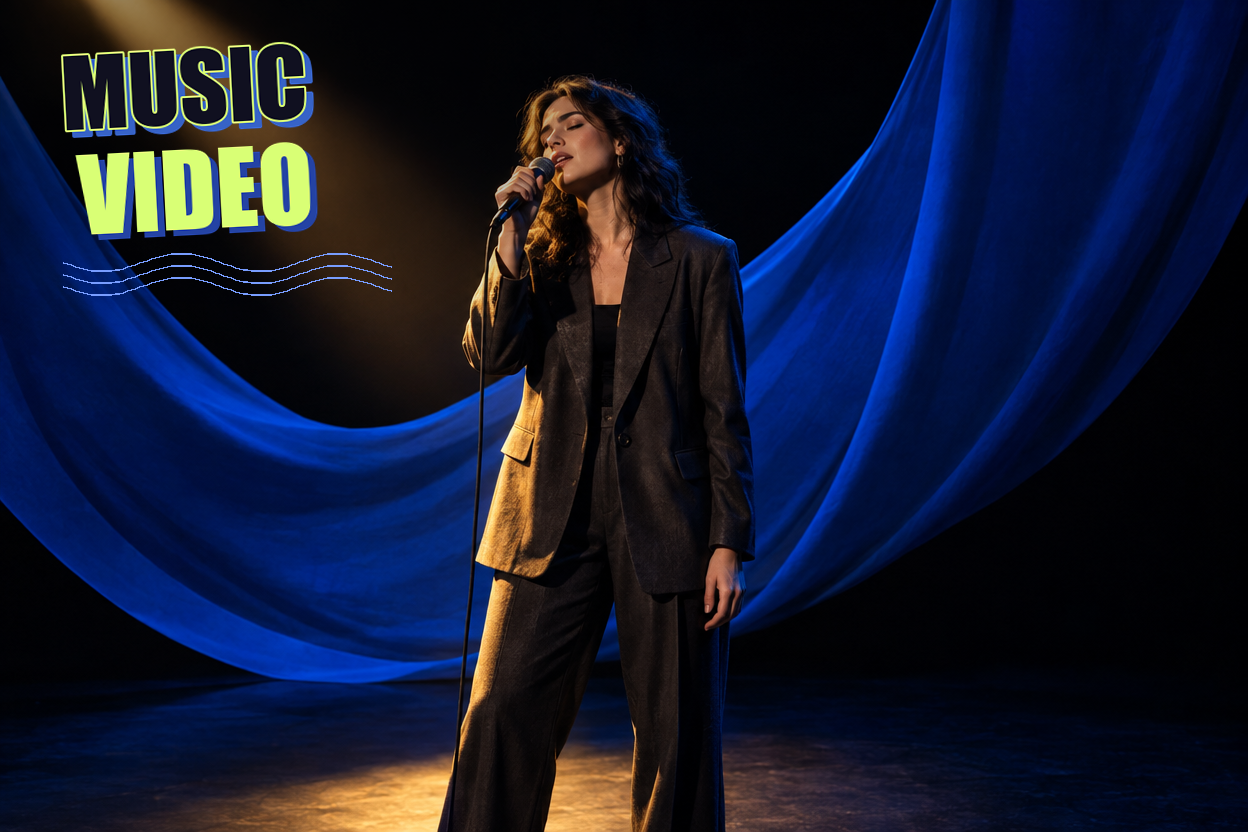
Music Video Visuals
Explore a visual identity for a music release. A singer framed by cobalt fabric and a narrow amber spotlight offers a distinctive performance scene for a music video or promotional teaser.

Travel and Destination Promos
Introduce a destination with a scene that captures its character. A small sailboat passing a terracotta coastal village provides an establishing image for a travel film, hotel promotion, or itinerary story.
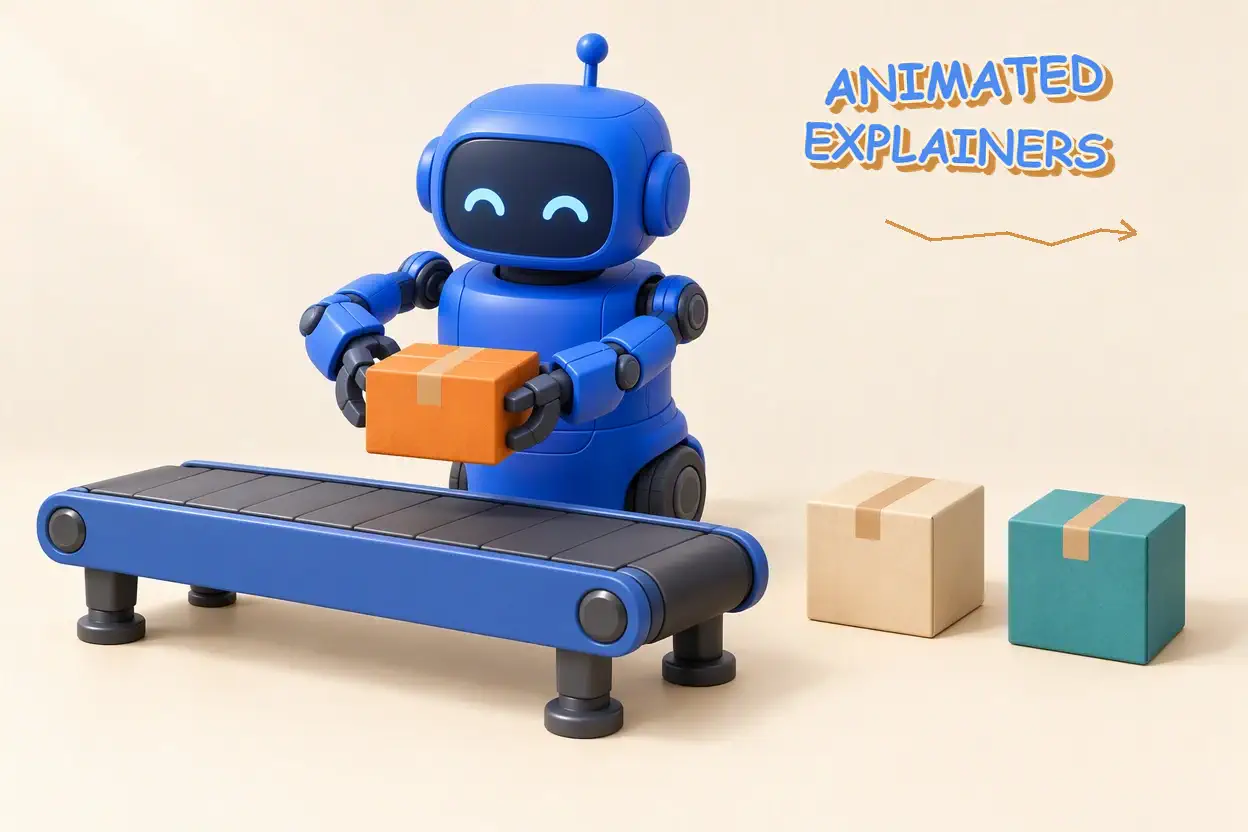
Animated Explainer Scenes
Make an abstract service easier to understand through an animated scene. A friendly sorting robot organizing colorful parcels gives an explainer video a clear visual metaphor for order fulfillment and delivery.
Credits for Your Next Kling 4.0 Project
Compare Kling 4.0 pricing and choose a one-time credit pack. Purchased credits never expire.
- 200 credits
- One-time payment
- Credits never expire
- 650 credits
- One-time payment
- Credits never expire
- 1,200 credits
- One-time payment
- Credits never expire
Kling 4.0 FAQs
Answers about creation modes, reference limits, sound, output choices, editing, and credit purchases.
Should I use references or keyframes?
Use references when you want to show the people, objects, style, or movement that should guide a scene. Choose Keyframes when specific visual moments along the timeline are the priority. They are separate modes for a generation, so choose the one that carries the most important part of your idea.
Can every version make a 30-second 4K video?
The main Kling 4.0 model supports clips up to 30 seconds and output up to 4K. Flash has a different scope: up to 20 seconds at 720p, without first-and-last-frame or multiple-keyframe generation. Choose according to the controls and delivery your scene needs; these specifications do not apply equally to both versions.
How do the reference limits work together?
The overall asset limit and the limits for each asset type apply together, including voice profiles. Filling one category does not add a new allowance in another. Video references, editing footage, and video elements also share a video quota, so plan the collection as one set and use the materials that communicate the most.
Will references keep a character exactly the same?
References guide the requested appearance and continuity, but exact identity or unchanged details are not guaranteed throughout a generated clip. Use clear source images, identify which person or object each reference represents, and describe the details that matter most. Precise logos, text, and brand marks may need final editing.
Can I upload a song as a voice profile?
Voice profiles are for guiding a speaker's voice. They are not an upload route for background music or sound effects. Describe the desired soundscape in the prompt, and reserve a voice profile for the character it should guide. Only supply audio and other materials you have the right to use.
Is 10-bit HDR available with 4K output?
4K resolution and 10-bit HDR describe different properties. The official guide lists HDR in its specifications but also marks the HDR upgrade as coming soon. Treat HDR as announced rather than an available output promise; selecting 4K alone does not establish that a video has 10-bit HDR.
Can I change one part of a video I already have?
Video editing starts from supplied footage and a description of the requested change. Name the element to change and the details you want retained, rather than describing an entirely new scene. Results still need to be assessed against the original when continuity matters; a preservation instruction is guidance rather than a guarantee.
How are credits purchased?
Credits are sold as one-time purchases and never expire. Choose a pack according to how much credit you want to keep available. The package price does not by itself specify the cost of an individual generation; that depends on the applicable model and settings. The pricing page shows the current credit packs.
Is this the official Kling website?
No. This is an independent website focused on Kling 4.0. The model's published specifications describe its capabilities; they do not establish an affiliation with its developer. Account, purchase, and support arrangements on this website should be understood separately from those of the official service.
Give Your Kling 4.0 Scene a Clear Ending
Start with the moment you want the viewer to remember. Choose the images or words that establish it, then give the action room to arrive there.
Create a Kling 4.0 Video